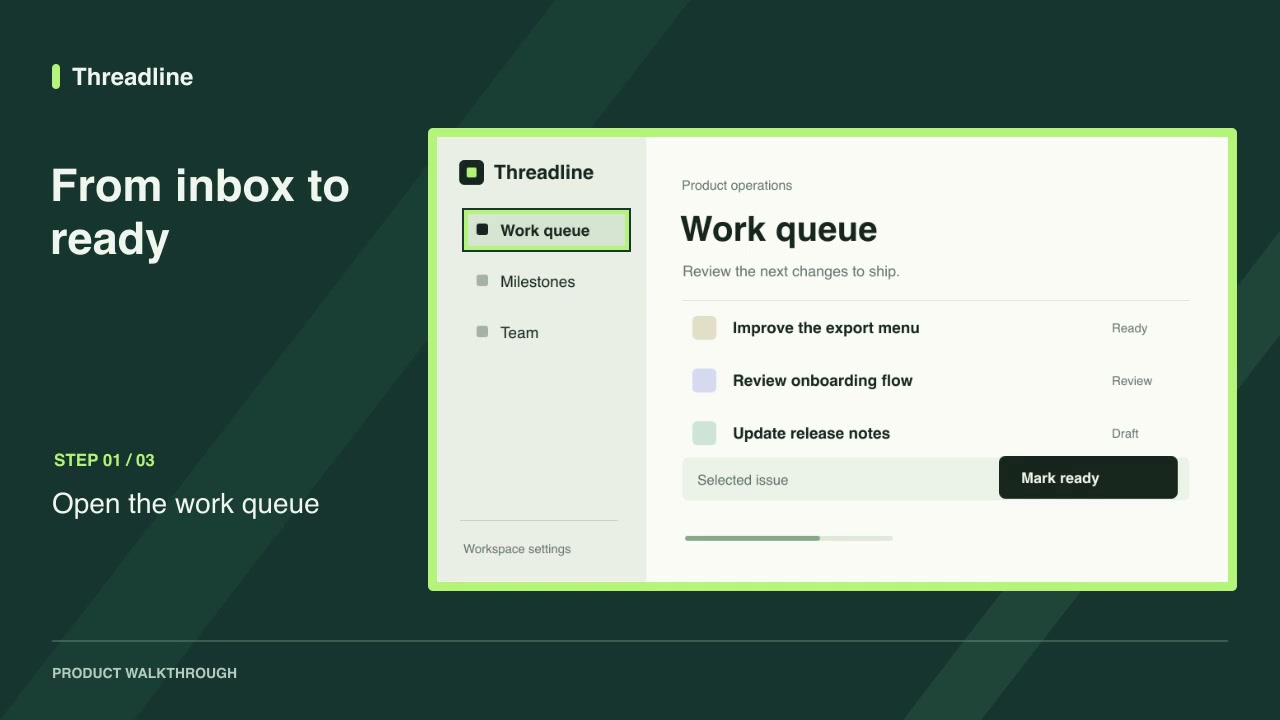
Every package includes a second, customized example. Compare it with the default to see which inputs change the result.
Copy, don't edit
Copy an example project into your own folder. Keep the installed skill unchanged so an update can replace it safely.
Replace the inputs
Change the values listed under What you provide on the skill page: text, colors, screenshots, footage, audio or numbers. Keep file paths relative to the project file.
Render to a new file
Render to a new output name so you can compare it with the example. Ask your agent to review the first frame, the main change and the final frame before you publish.
Try the workflow
Keep the version you used with your project so you can manage updates later.
Frequently asked questions
Can I change the motion itself?
Yes. The renderer is included, but test changes on a copy and keep the license terms in mind.