Start with a working example. Once it renders in your environment, you can change the inputs with confidence.
Choose a release
Find a video skill and play its preview. Check the expected inputs, outputs, runtime requirements and verified agents. Free packages are available to guests. Pro packages require an active membership.
Install the ZIP
Download the version you want. For Codex, extract the named skill folder into .agents/skills/ in your project. Open a new Codex session there and select the skill by name. To run it without an agent, open INSTALL.md in the extracted folder.
Render the included example
Install the programs named in the package. Run the default example as documented and play the resulting video. Save a new brief and output path before replacing any inputs. Keep your edits outside the installed skill folder so updates do not overwrite them.
Try the workflow
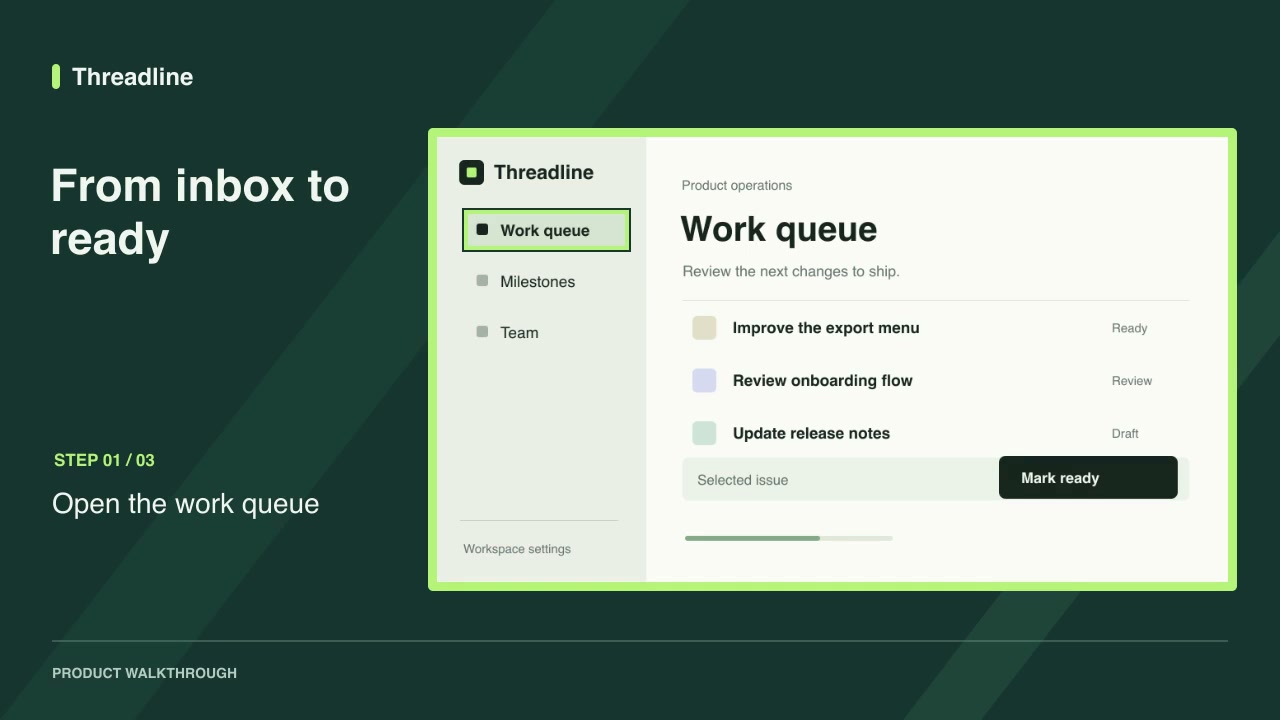
Try the free Screenshot walkthrough with a short sequence of product screens.
Frequently asked questions
What if a prerequisite is missing?
Check the package’s required versions, install the missing program and reopen your terminal so it loads the updated PATH.
Can I verify the archive?
Compare the ZIP’s SHA-256 checksum with the value on the release page before extracting it.